Smol for Mac now has an app launcher
The launcher includes Quick AI, searchable clipboard history, Textbox, Draw, and Screenshot.
We added a Raycast clone to Smol for Mac, inspired by Tinycast. Press ⌘Space to launch an app, search your clipboard history, or ask Quick AI a question using your Smol account. Raycast · Tinycast
Bring the right clipboard entry into Quick AI
Enable Launcher in Smol’s welcome tour or Desktop Settings. Enable clipboard capture if you want history. It starts paused, so turn it on before copying something you want to recover. Open the launcher with your configured shortcut (the default is ⌘Space). Press Tab in the empty search field to open Quick AI.
To ask about a copied error like connect ECONNREFUSED 127.0.0.1:5173, choose Attach clipboard, search for ECONNREFUSED, then choose Attach to AI. You can now ask “Why can’t I open the local preview? What should I check first?” The other things you copied stay in your Mac’s history. You choose the excerpt, edit the question, and press Send.
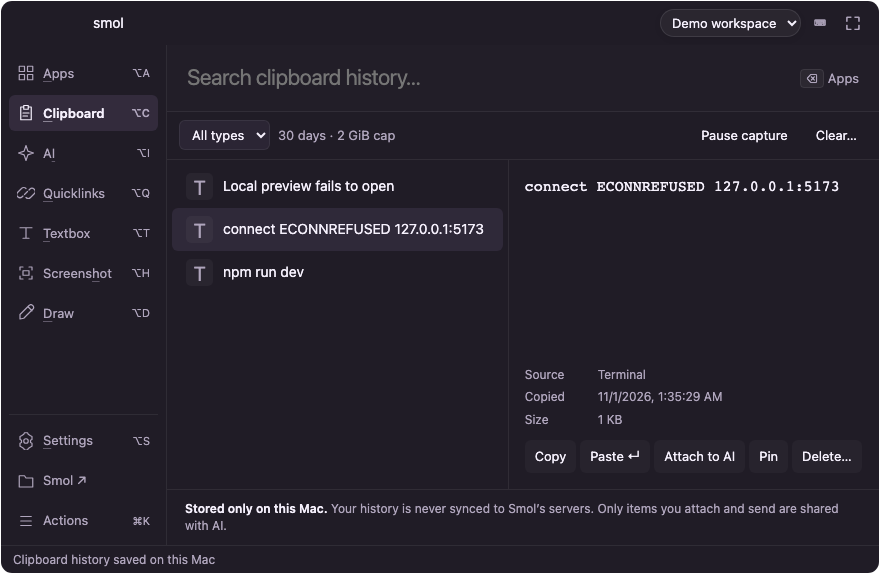
Three example clipboard entries in the launcher. Attach to AI takes the selected error into a draft. Paste sends it back to the previous app if you’ve granted Accessibility permission.
Workspace uses the Smol account you already paired with the app. It saves the conversation under your account in that workspace, so you can reopen the answer later. On this Mac sends the text to a compatible model server on your own machine, such as Ollama. With the model installed and running you can ask the question offline. Your local history remains readable after you stop the model. See a saved on-device conversation
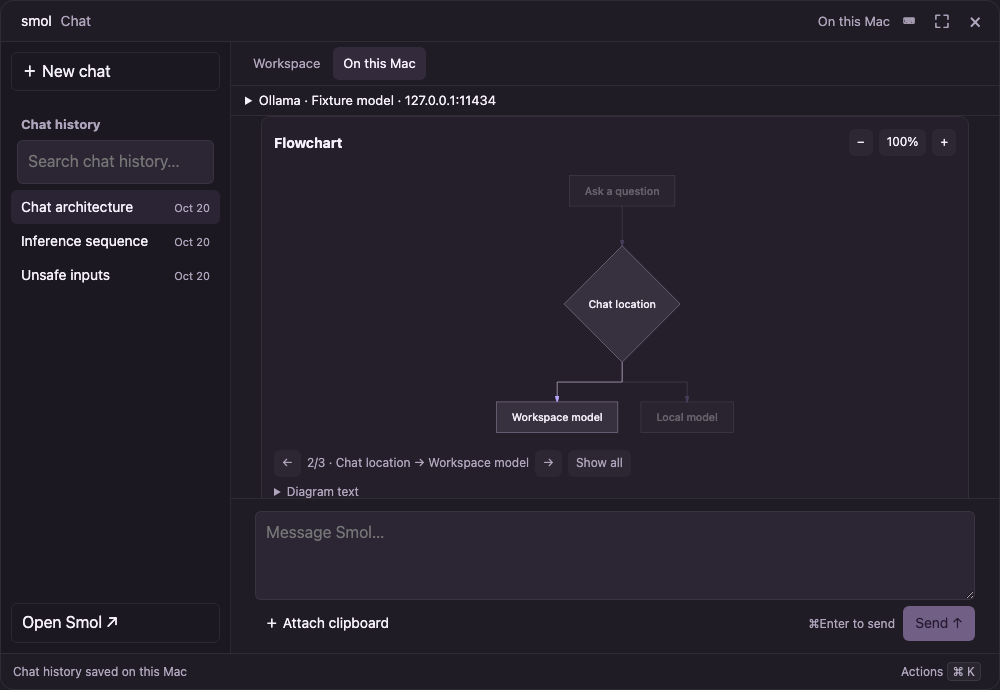
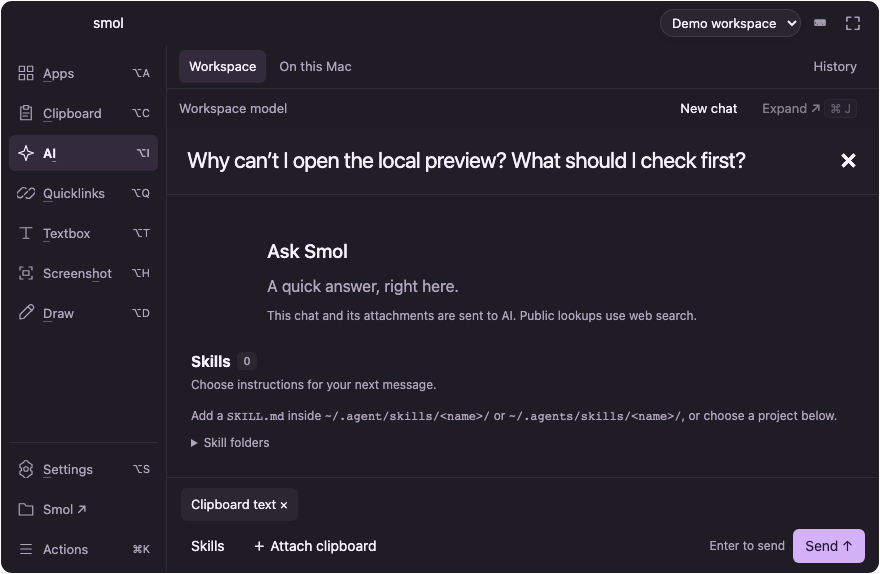
The error is now in a Quick AI draft. Only the selected clipboard text is attached, and the question is still editable.
Turn the answer into a useful bug report
Textbox is a scratchpad that remembers what you typed. Put the reproduction steps there while you check the answer. Later, Ask AI opens that text as an editable prompt. If a teammate needs to see which services are talking, open Draw, drop a server and a database from Arach Tchoupani’s systems-design library onto the canvas, and connect them.
For a bug on screen, Screenshot is quicker than drawing it from scratch. Press ⌘⇧R to select the area. Draw an arrow toward the failing button, then choose Copy & close and paste the marked-up PNG into the report. If you’ve configured a Smol workspace as the capture destination, Upload & copy link gives you a link to share instead. Smol saves the edit locally first, so a failed upload doesn’t cost you the annotation.
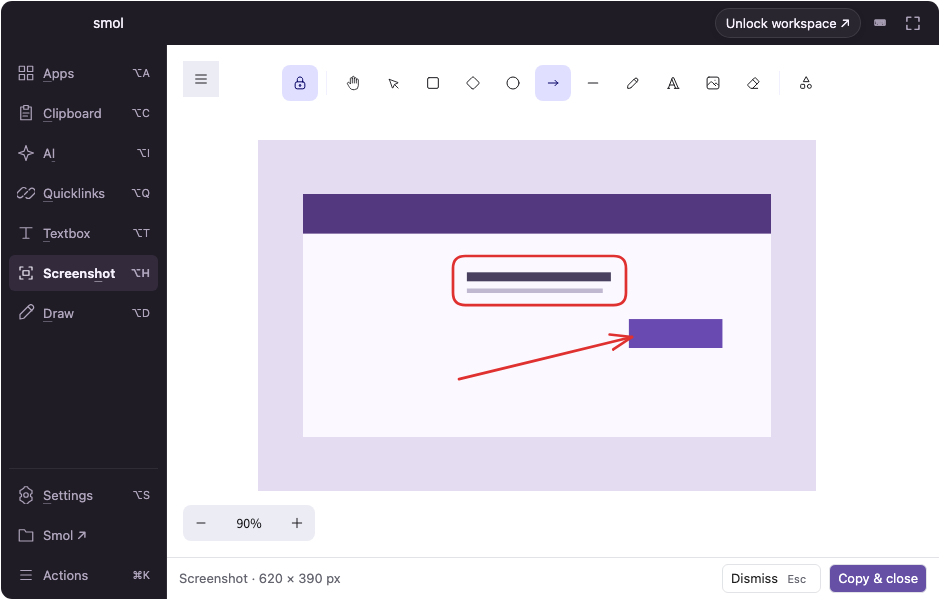
Marking up a synthetic capture in the beta.11 editor. The screenshot has its own canvas, so the diagram in Draw stays intact.
There are a few smaller reasons to keep the launcher open. Search Apps to reopen Terminal. Pin the project folder in Quicklinks so you can get back to the reproduction files tomorrow. Type 20% of 150 into the launcher to get 30 and copy the result. Each one saves a trip out of the task at hand.
Where computer use could fit
You can already customize a Quick AI request. Open AI → Skills, choose a personal or project skill, and preview its instructions before adding them to the next message. A team could keep its bug-report format there and use it with either a workspace or a local model. Mac release notes
The next question is whether the launcher could do a step you currently have to perform yourself. For this example, imagine asking Smol to open the preview, reproduce the failure, and bring back a draft report for you to review. We’re exploring how browser and desktop control could fit here. Vercel Labs’ agent-desktop is one project we’re looking at. It lets an agent inspect the controls an app exposes to the operating system and act on them. This kind of computer use is a future direction for Smol. Vercel Labs’ agent-desktop
To try what’s available today, enable the launcher and clipboard capture, copy one line, then copy a different line. Ask Quick AI about the first one. Download Smol for Mac